Sunday, 20 April 2014

Review: Chromecast

Review: Chromecast

Introduction

Streaming media around your home isn't a new idea, but the rise of internet-based on-demand services like Netflix and iPlayer means that it's becoming more and more popular as a way to watch TV.
Chromecast, then, is an inexpensive media streaming adapter that turns any HDMI-equipped television into an app-driven smart TV when paired with a phone, tablet or computer.
The total package is Google's answer to the likes of Apple TV, Roku 3 - devices designed to take your digital content and get it up on your big screen without fuss or fiddle.
It's a very simple setup that Google's offering: the Chromecast is a small HDMI dongle that plugs directly into your TV, and connects to your Wi-Fi network.
You choose what to watch on another device, and then Chromecast streams that content from the internet directly and displays it on your TV. Curiously, it has no real interface of its own, it just sits and waits for your other devices to tell it what to stream.
On its launch in the middle of last year in the US, the Chromecast wowed with its cheap price, and it's similarly bargainous in the UK: just £30 - less than a third of the Apple TV's RRP. That's awesome.
chromecast

But it comes with an important caveat: while the Chromecast unit itself works well right now, the services that it needs to support it are very much a work in progress, even months after its US launch.
In the US, the Chromecast app list is now up to 23 including Netflix, YouTube, Hulu Plus, Pandora and HBO Go - most of the big hitters.
However, in the UK, we're looking at a much more limited range. BBC iPlayer already has support for Chromecast in both its iOS and Android apps, as does Netflix.
Google's YouTube app also supports it, on both iOS and Android. But as far as the other big UK streaming services go… you're currently out of luck.
There's no Now TV from Sky, no 40D, no ITV Player, no BT Sport, no Demand 5, no Blinkbox. Even Amazon's Instant Video Service isn't supporting it yet.
chromecast

Music is really restricted for UK users, with even the lone Pandora app support no good for us, due to licensing restrictions. The key addition here would be Spotify, but there's a wide range of services that could become available.
We're sure that this will change (Google can be very persuasive…), but there are major limitations on built-in support at the moment.
Google's Chrome browser on Mac or PC lets you mirror a browser tab to your TV, meaning that you can theoretically send any of these services to your TV that way, but there are issues with this.
cast button

If you stream video via the compatible apps, the content is streamed directly from the internet to Chromecast without travelling via your phone or tablet.
But if you mirror a browser tab, you're effecively streaming video to your computer from the internet via your router, then streaming it back to your router and then streaming it out once more to your TV, resulting in heavy network traffic.
If your network is flaky, this will result in choppy performance. We tested on a variety of networks and found results were variable but a clear network should be able to handle it. Browser streaming options are Extreme (720 high bitrate), High (720p) and Standard (480p).
Using Chromecast, though, it's clear that it's designed for use with portable devices in mind. You won't find a Chromecast remote in the box or a main menu tying all of the apps together like on an Apple TV or Roku 3.

Chromecast rivals

All streams originate from a special "Cast" button that's built into each compatible mobile app - your device is the remote.
Currently, Windows Phone 8 users, who don't have many options among app-filled streaming technology, are totally out in the cold for Chromecast support, so you are limited to Android and iOs devices, too.
Despite these limitations from the big names, Chromecast has extra potential to it thanks to developers getting creative with the Google Cast SDK.
AllCast enables Android users to display video and photos through the Chromecast, for example, which is useful, since Google somehow neglected to add this feature to Android.
Photo Caster is a free app that enables iOS users to put their photos on-screen similarly.
Media Browser is an app for iOS and Android that streams media content stored on any computer in the house, giving the Chromecast home theater PC (HTPC) granting capabilities. You can even stream Podcasts from a few apps.
The way Apple integrated its AirPlay streaming solution deep into iOS means that it inevitably has better support when combining an iOS device with an Apple TV, but as long as developers continue to use the Cast SDK, we will inevitably see almost as widespread support for cross-platform solutions - iOS, Android and Chromecast all working together seamlessly.
Roku has its Roku SDK, but it's easier for many developers to make their apps compatible with the Android-based Chromecast. It requires a little bit of retooling rather than learning an entirely new ecosystem, as is the case with the Roku.
Between its universal nature, rock-bottom price and ease of setup, Chromecast is massively tempting as a little TV add-on.

Design and interface

Chromecast is so small it could easily be mistaken for an oversized USB thumb drive with a little more heft to it.
That contrasts with Apple TV or Roku, which sit as separate boxes, and often have extra outputs, such as for audio. Nice if you want them, but not necessary for most people. Chromecast just is one big HDMI plug, with the exception of its power cable.
It's a simple black unit, likely to blend into the colour of most TVs (though if it ends up sticking out of the side noticeable, it'll be somewhat more intrusive).
If your TV is wall-mounted, Chromecast could be really awkward to implement depending on your TV's HDMI port positions. It might also not fit into the space for HDMI ports in some setups, so Google has included a short HDMI extender cable.
chromecast plugged in

It gets around immediate problems, but be aware that at 72 x 35 x 12 mm, Chromecast might be an awkward fit.

Powering Chromecast can be a little more complicated depending on the age of your television, because it can't run on the power from the HDMI port alone.

chromecast power cable

On the rear of the unit is a micro-USB port, and Google has included a five-foot micro-USB-to-USB cable in the Chromecast box along with a power adapter that plugs into the mains.
Ideally, you wouldn't use the latter of these - if your TV has a USB port on it, as many Smart TVs do, you can use that as the power source.
Otherwise, you'll have to plug in, and it's possible you'll find that five feet isn't enough. Again, it's not a big problem, but it's worth being aware of.
Once it's plugged in and ready, Chromecast's software setup is not complicated at all - in fact, it's barely existent.

set up

It's a matter of visiting Google's Chromecast "getting started" website on a laptop, tablet or smartphone, downloading and installing some software, and connecting the device to your home WiFi network.
Google has provided apps for each platform that take care of this for you, with the Android version especially good – it does almost everything for you.

set up chromecast

Once you've set up, Chromecast is basically ready to go. It's always on, so when you want to use it, just switch the HDMI input you've got it on and fire media at it. When there's nothing playing, you generally just get a screensaver, showing pretty photography.
Content and performance
Chromecast finally gives Android owners an official media-relay option that broadcasts content from their smartphones and tablets to a TV in similar way to Apple's AirPlay technology. That it works across Android, iOS, PC and Mac is even better.
There's a "Cast" button that's usually built into the top right of all of the compatible mobile apps - it looks like a rectangle with broadcasting bars (like a Wi-Fi symbol) in the corner.

cast

It's easy to recognise, despite Android being full of similar rectangles these days (and Apple's AirPlay symbol being somewhat similar).
Tap the "Cast" button and you'll be offered a list of Chromecast devices on your network, so just choose which one and you'll see the screen spring into life, loading the video or audio content you selected.

The app then becomes a remote, basically, enabling you to control the screen. The likes of Netflix even give you a custom screen on the device, ditching playing the video there as well in favour of big buttons for controlling playback easily.

cast
Video quality is great from most online sources - Netflix in HD looks as good as you'd hope. We did encounter some freezing issues towards the end of a film, but pausing and restarting got us back in action.
Netflix is also capable of streaming from the website on PC or Mac natively (not using the tab mirroring feature) to Chromecast, but when we tried this, the audio was often a tiny bit out of sync.

stewart lee

Chromecast also doesn't require an entire Apple TV device to sit in your entertainment console or force you to wire up with a lengthy power, HDMI and optional Ethernet cable.
Its plug-and-play nature means that it can be transported much more easily and fit into a backpack to carry to a school presentation or business meeting (we used Apple's iCloud version of Keynote to show a presentation from a Chrome tab), hotel room, or friend's TV. That flexibility may be worth its inexpensive price alone.

There is one potential of inflexibility, though. The total lack of built-in apps or direct method of control (such as a dedicated remote) means that if your device runs out of battery or is in another room, you can't play anything.
We had a few little niggles with apps as well, such as Netflix not running automatically from one show to another, and a photo-casting app that forgot the Chromecast after each use and had to hard quit and restarted.
Most of these are probably up to developers to fix, though, and as things mature, we expect they'll improve.

Verdict

Google's take on an AirPlay like universal streaming service is hugely impressive, not just for its price, but because it works well, on many platforms.
And yet, it's only just begun - there's lots more Google will likely add to Chromecast in the near future.

The obvious downside to things having only just begun is that the number of services available is limited. If you have a Smart TV with iPlayer and Netflix already available, it might not look all that exciting.
And you'd be right, at least for now. But for those with older TVs and a phone or tablet, it's already one of the cheapest ways to get yourself some key on-demand services.

We hope that developers will also be able to work in some other interesting Chromecast options for the future, provided the technology allows it - something equivalent to the big-screen gaming that AirPlay enables for Apple users would be great to have cross-platform, for example.

We liked

Chromecast is brilliantly easy to set up, gave us little hassle after the first few minutes, and then worked really well.
You quickly become accustomed to the idea of just reaching for your phone and beaming something over to it - just like the future should be.
The streaming quality is generally very good, and it's quite reliable, especially for a product that's still fairly early in its life. It's also impressive that it works so well on all platforms.
At £30, we definitely like the price. It's well into impulse-buy territory, and we do think it's worth picking one up just for its potential, even if you already have a way to stream the services it currently works with.

We disliked

The lack of apps is the simple, major problem. Chromecast is fairly well-supported in the US, but here in the UK, it needs fleshing out.
Netflix and iPlayer are big, but they're only one part of it. While we understand why Google made the Chromecast work only with content streamed from apps, the occasional inflexibility that brings can be disappointing.
And while it is broadly reliable, it does feel like a bit more polish would improve things further – faster loading of videos in some apps, broader support in basic Android apps, stronger streaming from desktops, for example.

Verdict

Chromecast is an inexpensive, easy-to-use way of accessing streaming on your TV. Netflix and iPlayer are a reasonable start, but it needs a broader range.
If it cost more, we'd say to hold off and wait to see if a wider array of apps appears, and that's probably true if you already have something that can stream common services, such as a PS3 or even an Apple TV.
But for £30, Chromecast is fun enough, robust enough and has enough potential that we've no problems recommending it to anyone without a smart TV.

How to Set Parental Controls in Windows 8

How to Set Parental Controls in Windows 8 is a post by Travis Pope from Gotta Be Mobile.
It used to be that locking down your family computer from inappropriate material or users sitting in front of their PC way too long was a chore. In Windows 8, the operating system itself is able to monitor underage users. Windows 8 is able to manage these tasks because of a featured called Family Safety.
Originally a standalone app only available to users who downloaded the Live Essentials collection of apps, Family Safety can monitor child accounts and report online activity directly to a parent account. It can also be used to automatically regulate when your child is online. For example, parents can tell their Windows 8-equipped tablet, notebook or all-in-one to not let their children in during certain times or for an extended amount of time. All of this monitoring relies on something very essential to Windows: user accounts. Every single Windows device allows parents to create user accounts. In Windows 8 Microsoft introduced a new Child account type that is limited in what it does and automatically reports information back to the device’s administrator account.
Before we begin, it’s important to remember that you’ll need the Windows 8.1 update before the setup process you get looks exactly like what’s shown below. Windows 8.1 is a free update that Microsoft makes available in the Windows Store. If you don’t already have it, download it now. It’ll take about an hour and also includes new customization features and the ability to hide the Start Screen when your device boots. Go to the Windows Store to see if it’s available on your device. If you see a banner labeled Install Windows 8.1, then tap or click on it to begin the setup process. If you don’t see the banner than you’ve already installed the update.

Setting Up Family Safety

Because Family Safety relies on parents and children having separate accounts, it’s that point that the setup process begins. If you haven’t created separate accounts for your entire family on every device, now is the time to do so. We walk Windows 8.1 users through creating any type of account in How to Create New Accounts in Windows 8.1.If everyone is using the same account on your Windows 8.1 device, remedy that now by creating at least one separate child account (or multiple child accounts if you have multiple children).
If you’ve already created at least one separate child account, here’s what to do. Go to the Start Screenby pressing the Windows key on your notebook or desktop’s keyboard. Tablet or 2-in-1 users should press the Windows button underneath their device’s display. 
How to Set Parental Controls in Windows 8 (1) Now place your mouse cursor in the top-right corner of your display to open the Charms Bar. Tablet users should place their finger on the left edge of their display and move their finger to the left. Now tap or click on the Settings Charm. How to Set Parental Controls in Windows 8 (2) Tap or click on Change PC Settings. How to Set Parental Controls in Windows 8 (3) Tap or click on Accounts on the left side of your display. How to Set Parental Controls in Windows 8 (4) Tap or click on the Other Accounts option. How to Set Parental Controls in Windows 8 (5) Now you’ll want to tap or click on the name of the account you’ve previously created for your child’s use. In our case it’s simply called Test. How to Set Parental Controls in Windows 8 (7)Make it a Child Account by tapping or clicking on the menu and selecting Child Account. Then tap or click Ok. How to Set Parental Controls in Windows 8 (8)

Managing Family Safety

Now go back to the Start Screen and open the charms again by placing your cursor in the top-right corner of your device’s display or by placing your finger on the right edge of your tablets display and swiping slightly to the left. Tap or click on the Search Charm. How to Set Parental Controls in Windows 8 (10)Type Family Safety into the Search Box and click or tap on the magnifying glass. How to Set Parental Controls in Windows 8 (11) Tap or click on Family Safety in the menu. How to Set Parental Controls in Windows 8 (12) Tap or click on Manage Settings on the Family Safety Website. You’ll immediately be taken to Microsoft’s website, where you’ll need to sign into your Microsoft Account. How to Set Parental Controls in Windows 8 (13) Now tap or click on the name of the Child Account you previously created. Welcome to the Family Safety control panel. From here you can completely manage your child’s entire online experience. How to Set Parental Controls in Windows 8 (15)
Activity Reporting and Web Filtering are probably going to be the most important features for anyone looking to protect their young child from looking up unsavory things online. Turning on Web Filtering will block access to content that you think they’re not ready to see. This can be customized to your child’s maturity level. Activity Reporting will automatically share your child’s activities with you through emails sent to your Microsoft Account. Certain content and actions will need to be approved if someone’s using a child account. Parents can manage these approvals through the Requests area.
The most important thing about all of these features is that these settings sync from device to device. As such, your child is protected by Family Safety no matter where they’re logged in. Windows Phone 8.1 also integrates with these features. As such, you can keep an eye on what your children are doing and playing on Microsoft’s smartphone platform as well.
__reach_config = { pid: '4e6e7984c2b2196e01000284', title: 'How to Set Parental Controls in Windows 8', url: 'http://www.gottabemobile.com/2014/04/19/how-to-set-parental-controls-in-windows-8/', date: '2014-04-19 14:30:49', authors: ['Travis Pope'], channels: ['how-to','microsoft','windows-8','windows-8-1','windows-phone'], tags: ['GBM How To','Microsoft','Microsoft Windows','Microsoft Windows Phone'], iframe: true }; (function(){ var s = document.createElement('script'); s.async = true; s.type = 'text/javascript'; s.src = document.location.protocol + '//simple-cdn.s3.amazonaws.com/js/reach.js'; (document.getElementsByTagName('head')[0] || document.getElementsByTagName('body')[0]).appendChild(s); })();

LinkedIn membership hits 300 million


SAN FRANCISCO: 

The career-focused social network LinkedIn announced Friday it has 300 million members, with more than half the total outside the United States.

"While this is an exciting moment, we still have a long way to go to realize our vision of creating economic opportunity for every one of the 3.3 billion people in the global workforce," said LinkedIn vice president Deep Nishar in a blog posting.

Nishar said that for future growth, the company believes it will be more important to get people using the network on mobile devices.

"We know mobile is critical," he said. "Later this year, we are going to hit our mobile moment, where mobile accounts for more than 50 percent of all global traffic. Already, our members in dozens of locations including Costa Rica, Malaysia, Singapore, Sweden, United Arab Emirates and the United Kingdom, use LinkedIn more on their mobile devices than on their desktop computers."

LinkedIn has its headquarters in the Silicon Valley city of Mountain View, California, and is available in more than 200 countries.

Earlier this year, LinkedIn launched a Chinese language version, attempting to tap the huge market while navigating a strict censorship regime that has seen other foreign social media giants banned.

"Our goal is to connect the more than 140 million Chinese professionals with each other and the global workforce," Nishar said.

In China, LinkedIn allows users to post public comments, but unlike its English-language counterpart it does not currently allow group discussions.

The social network launched in 2003 allows members to create professional circles that help their career path, and allows employers and recruiters to locate people with needed skills.

The company went public in 2011 with one of the hottest public offerings in the sector at the time. Its share price has jumped to $175.42 from the IPO price of $45.

Facebook plans to share Nearby Friends location data with advertisers

Facebook plans to share Nearby Friends location data with advertisers

Facebook has confirmed the data mined through the new Nearby Friends feature may one day be used for advertising and marketing purporses
The new tool, which is rolling out to iOS and Android apps in the coming weeks, allows users to share their location with select friends enabling pals to detect when they're in the locale and arrange meet ups offline.
At the time of the announcement on Thursday, Facebook made no mention of sharing the data with advertisers, which would have no doubt coloured the reaction to the feature.
Belatedly, a Facebook spokesperson has confirmed to TechCrunch: "At this time it's not being used for advertising or marketing, but in the future it will be."

Tracking your travels


Facebook is pitching the tool as a valuable new feature for users. It sends occasional notifications informing them how often friends, who've also agreed to be seen, are in the locale.
It will also follow users on their travels, allowing friends to pitch in with suggestions or recommendations wherever they roam around the world.
Knowing the end goal may be (or always was?) geared towards targeted advertisements may see some users change their views on the feature.
Will you be switching on Nearby Friends when it hits your smartphone? Let us know your thoughts below.

11 Android apps to make notifications more interesting


Notifications


love Android as much as the next non-Apple owning guy, but there are times when I get bored of using the same old operating system, and seeing the same boring old notifications.

Thankfully, there’s no shortage of different ways to liven things up without having to root your phone, or in some cases, even spend a penny.

Sure, Facebook’s chat-head style notifications set a trend for a bobble-headed approach, but that’s not the only way you can modify how you get informed about new events, and for older handsets that haven’t been gifted with features like lock screen widgets (Android 4.2+) and album art (Android 4.4), these are a handy way to make things a bit more interesting.

Floatifications


The app formerly known as Floating Notifications (TAFKAFN, if we’re following Prince’s logic), now going under the moniker Floatifications, was updated at the start of the year to include a new ticker display option, as well as to reflect its name change.

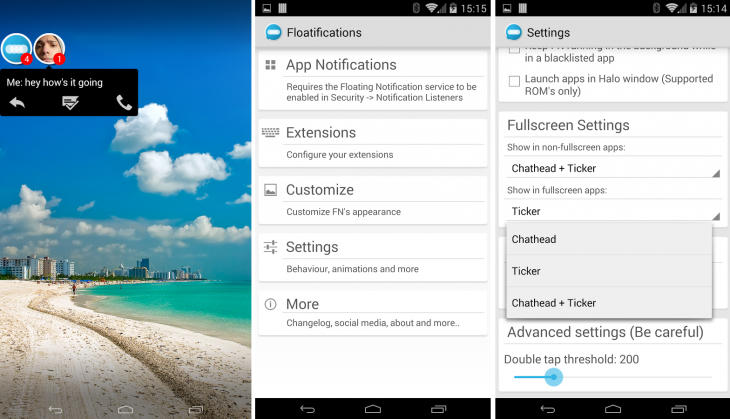
At its core, what Floatifications does is take Facebook’s chat-head-style interface and apply it to virtually any app you want, although the company notes during the setup process that there may be a few that are incompatible – and to email them to add support.

One of the key advantages of Floatifications over stock Android is that it also works in full-screen mode, allowing for uninterrupted access to notifications. So if you’re watching a YouTube video, for example, and receive an SMS, you don’t actually have to navigate away from whatever you are watching to read the content of the message. Tapping on it, however, will take you to your normal messaging app to reply (and therefore away from whatever you were doing before).

Floatifications 730x419 11 Android apps to make notifications more interesting

The on-screen notifications are shown by floating dots which can be expanded for closer inspection with one tap, or dismissed with two. It’s nice that a different icon is used for each too, allowing you to easily see exactly whether you’ve received an email or a tweet without having to press a button. If it’s an email, the sender’s name is displayed below the icon. The icons can be easily moved as a group to anywhere on the screen just by dragging them at any time, which I found necessary, as they sometimes got in the way.

In order to support notifications for third-party apps like Facebook, Twitter, Pocket or any others, you’ll first need to enable the app for ‘notification access’, which can be found in Settings>Security>Notification access. Make a mental note of that now if you intend on trying out a few from this list, as they all require this permission.

Floatifications is extensible too – meaning that there are plenty of other features and themes available from Google Play and ready to plug directly into the core offering if you want to change its appearance.

There’s a free 14-day trial for all users, after which point you’ll have to cough up $2 to carry on using it. While this isn’t the same as having a free ad-supported version of the app, a two-week trial should be enough time to work out if you like it enough to pay for it. And who really likes ads that much anyway?

➤ Floatifications | Floatifications Unlock ($1.99)

Metro Notifications


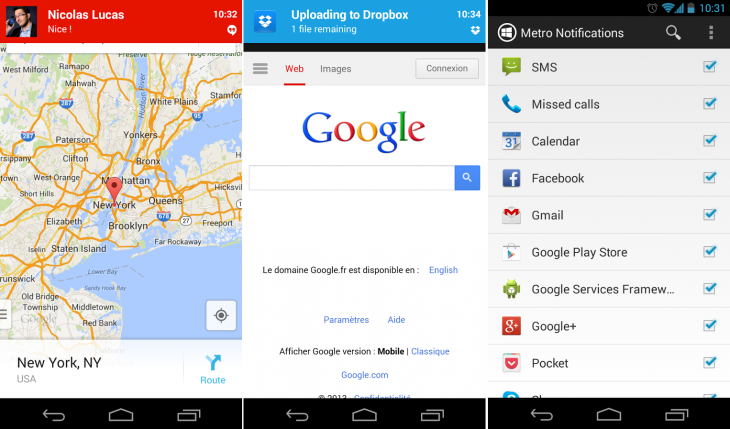
If you like the support afforded by the Android software and hardware ecosystem, but hanker for notifications more in the styling of Windows Phone/Windows 8 style, then the aptly (or perhaps less aptly, given that Microsoft isn’t allowed to use the word Metro to refer to its Windows 8-style apps) named Metro Notifications should be right up your street.

MetroNotifications 730x429 11 Android apps to make notifications more interesting

It’s a simple and straightforward affair – just select which apps you want to receive notifications for and leave it to do its thing. As with Floatifications, there’s a paid-for option costing $2.60 which offers more customization options, such as color, size of notification panel, contact picture support and more. The free version does, however, allow you to decide where you’d like to see the notification appear, either right at the top of the screen, just below the status bar, in the center of the display, or right at the bottom. It can also be set to ring or vibrate when you receive one too, but this might override the app’s native notification sounds.

While the free version does as promised and shows your notifications, if you do want this Windows Style effect, you’ll likely end up paying for the full version. Many of the best features, like offering a black list, more display options, gesture support and a user-definable ‘quiet time’ for receiving no notifications at all are all reserved for paying customers.

➤ Metro Notifications Free | Metro Notifications ($2.99)

Notif Pro


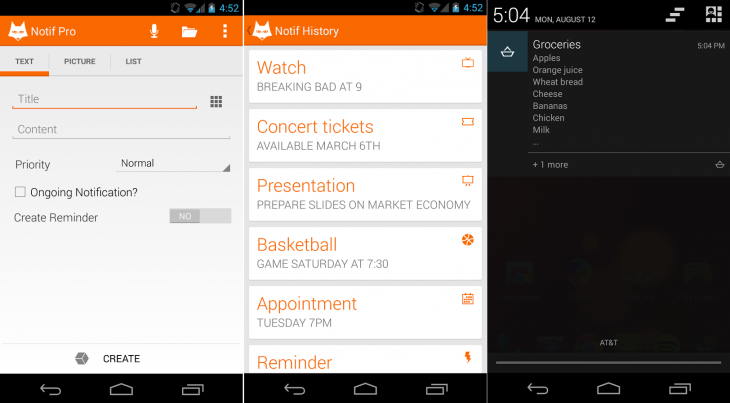
Sometimes, rather than replacing the stock Android notification system, what you might rather do is have the ability to set rich custom notifications for virtually anything you want – whether that’s a reminder to go to the dentist, go food shopping, take the kids to Taekwondo lessons or anything else. For those times, there’s Notif.

Upon first opening the app, it looks a bit tedious or daunting to use – and if you’re opting for text-only input, it might prove to be. However, thankfully, Notif has recently been updated to include the ability to add custom notifications using only voice commands, and it’s really quite accurate, as long as you’re issuing a single sentence command (like, ‘Remember’ or ‘To do’ as the title for the notification followed by ‘call Mike before 4pm’ or ‘buy milk and bread’). If you start to issue a list of bullet points, it’ll quickly lose track of what you’re saying.

NotifPro 730x403 11 Android apps to make notifications more interesting

Each of the text, image or list notifications can be set with its own icon (from a choice of 20 in the free version), so that you can quickly see and group notifications, which are all displayed in the traditional drop-down bar along with other stock notifications.

It’s free to download and use, but if you like it, as with Metro Notifications, you’ll end up paying for Notif Pro as the free version is missing some key options, like editing notifications once they have been created – pretty much essential if you’re making an ongoing list.

Paying the current $1 asking price also unlocks other necessary features, like the ability to share any of the notifications with core and third-party apps like Gmail, Pocket, Dropbox, Drive, Facebook and many more, directly from the notification bar. It also unlocks the Android Beam sending option, which allows you to share a notification directly to the notification drawer of another Android device. It’s worth noting that if you do make the upgrade and delete the free app before deleting the notifications, they’ll stay in your notification bar until the next time you switch off the device.

Despite being pretty well-featured, Notif Pro isn’t for everyone, but if you like to plan out your life with meticulous detail, it’s worth considering.

➤ Notif | Notif Pro ($0.99)

DynamicNotifications


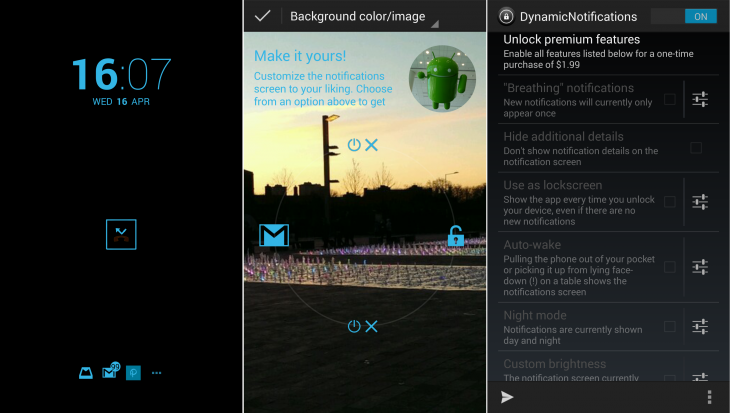
DynamicNotifications, once called ActiveNotifications, is one of the slicker examples of an Android notifications app, but rather than replacing the core functionality of the notifications launcher, it focuses on making your locked device more productive.

While a lot of the newer Android handsets have manufacturer specific tweaks that let you jump directly into certain apps from the lock screen, not all can – and if you’re running the older versions of Android your choices are pretty limited.
DynamicNotifications 730x413 11 Android apps to make notifications more interesting

DynamicNotifications can effectively show you notifications from pretty much any app that you have installed directly on your lock screen, once you’ve authorized it to access your notifications during the setup process. You can then jump directly to that app from the lock screen by dragging icons up from the bottom of the screen and then moving the slider to the left. Or, you can unlock as normal by dragging to the right.

That’s about it for the free version, although you can change how the lock screen looks too. In the paid option ($1.99), there are additional options, including Auto Wake (picking the phone up shows the notification screen), Night Mode (for some quiet time), Widget support and the ability to edit swipe actions.

It’s a completely different kettle of fish to something like Notif Pro, but if you’re happy to stick to the free features and want to make your lock screen a little more useful, then it’s worth checking out.

➤ DynamicNotifications | DynamicNotifications Unlocker ($1.99)

Flash Notification 2


Flash Notification 2 is a little different to most of the others in this list, but it does the same job of making your standard notifications a bit more interesting.

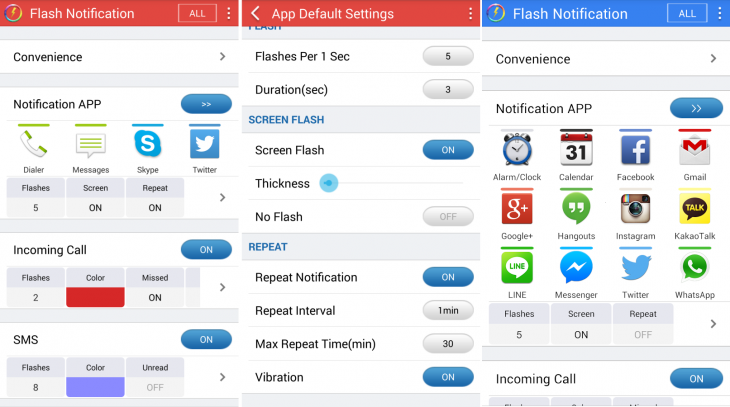
Rather than replace the usual on-screen notification system, Flash Notification 2 uses the flash on your camera to draw your attention to new events.

As you might expect, there’s the option to change the duration, intensity and color of the notification used to get your attention. The actual flash itself will flash white (obviously) but this is combined with the border around the edge of your screen flashing the color of your choosing.
FlashNotifications2 730x407 11 Android apps to make notifications more interesting

In fact, even though it’s free, there are quite a few options to play around with, like the repeat interval, duration of the screen flash, thickness of the border color. There are also options to answer a call by shaking your phone, should you want that.

As with others, you can set which apps you want it to show notifications for; it will show calls and messages by default.

Rather than charge you, the app uses ads, and there’s no paid version of this specific app, although the developer offers a similar app that is paid.

The number of ads you’re shown depends on how many apps you have set to receive notifications from. By default, you’ll only see one per day, but as you enable more services, the number of possible ads you could see each day increases.

➤ Flash Notification 2

Desktop Notifications


If you spend a lot of time at a desk all day and would rather not have to keep picking up your phone just to check your text messages and other notifications, then you should check out Desktop Notifications.

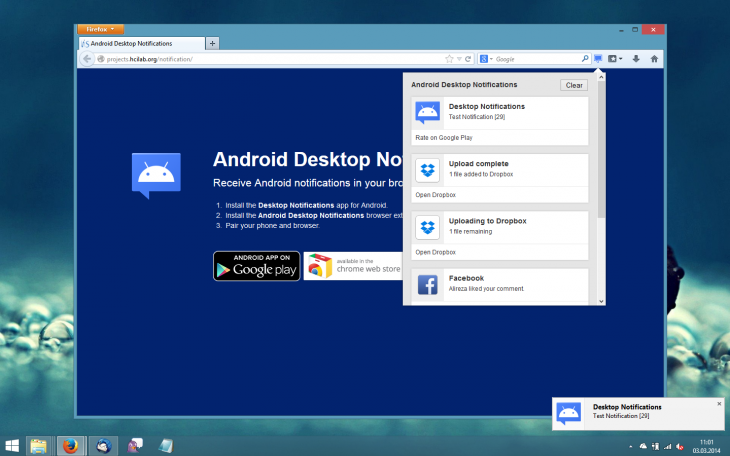
This app is actually one of the simpler ones on this list; it’s less about what the notifications look like on your phone, and more about the convenience of having them pop up on your desktop.

To make this happen, you need to install the Desktop Notifications Android app, and then install the Firefox add-on or Chrome extension. Then enter the number you’re shown to pair your phone with your desktop and you’re good to go.
DesktopNotifications 1 730x456 11 Android apps to make notifications more interesting

By default, the app will show you all the standard notifications for events like calls, SMS, email and ongoing notifications such as downloads, Dropbox transfers or timers. If you connect your Facebook account, it’ll show you those social updates too.

On the whole, it works as you’d expect. Each time you get a notification it appears on the status bar of your desktop. The one exception, and one you’d really want it to work for, is when you receive a call. In some instances it was too slow to recognize that a call was incoming and by the time the icon popped up on screen, it had already gone to voicemail. Other notifications, email and SMS experienced no delay at all.

Did I mention it’s free? Well, it is.

➤ Desktop Notifications

MegaSound Beta


Where most of the other apps in this list focus on changing how you see your notifications, this simple little app is squarely set on changing how you hear each update instead.

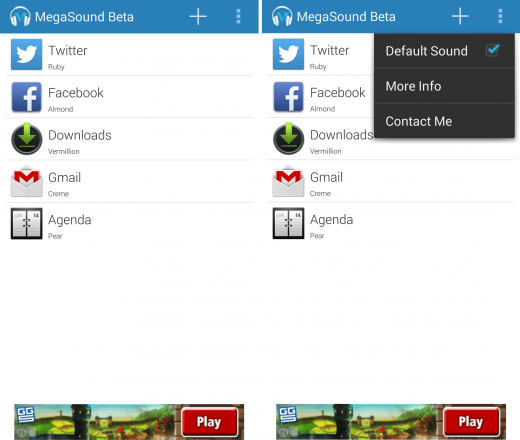
Simply, once installed and granted access to your notifications, you get the option of setting a custom tone or piece of music for any app that you like. Just hit the + sign and start setting notifications for each app individually.

Depending on how you view the situation, it’s this simplicity that really makes MegaSound potentially appealing – if you don’t want to change your system or individual contact sounds, but want to use custom tones for specific apps, then this is exactly what it will do for you.
MegaSound 520x440 11 Android apps to make notifications more interesting

You can also use it to change the standard call or SMS sounds by enabling the ‘Default Sound’ option in the settings menu.

While it’s simple and works well for the most part, MegaSound is still in beta, so there’s the potential for bugs. Still, it’s useful if you’re looking to jazz up your audio notifications. The app is free, but you’ll have to ignore a small ad at the bottom of the screen.

➤ MegaSound Beta

 SpeakMe


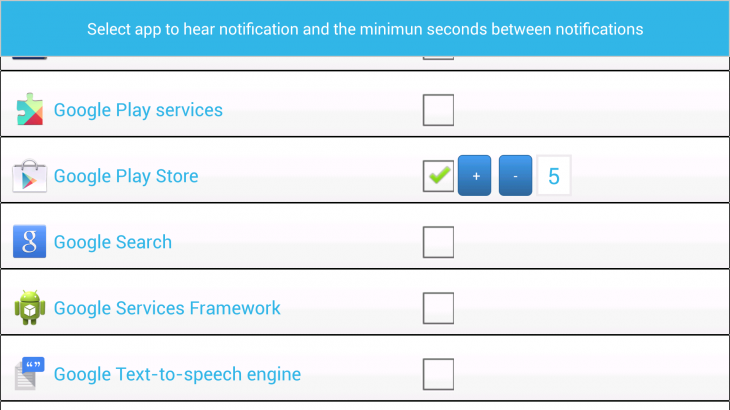
While pretty much every build of Android that you’ll find on handsets nowadays includes the option for text-to-speech for text message and call notifications, if you want to hear other notifications read aloud for the rest of your apps, you’ll need a third-party app like SpeakMe or Voice Notify.

Both function in pretty much the same way – you just select which apps you want to hear voice notifications for, and whether you want to hear the full text or just the name of the app – but SpeakMe is the better looking of the two. If after testing it out for a while you decide you like it, there’s an even nicer looking SpeakMe Pro version available for $0.99. The core functionality is largely the same, but it’s much easier to select which apps you want to enable voice notifications for thanks to a search option.
SpeakMe 730x410 11 Android apps to make notifications more interesting

In the settings, you’ll find options for making sure the voice notifications aren’t activated at specific times, like when your phone is in silent mode, for example. For each app that you enable, you can also set a time limit to ensure that duplicates aren’t subsequently read out. So, if you enable it for WhatsApp or Facebook Messenger and get a barrage of replies within your set time limit, it will only read out the first message.

Personally, there are few apps that I find I need audio notifications for, perhaps Twitter if I’m really busy, but if you’ve been scouting for a voice notifications app, SpeakMe is a handy one.

➤ SpeakMe | SpeakMe Pro ($0.99)

Mumble


Mumble is an app for people with a serious SMS or IM habit.

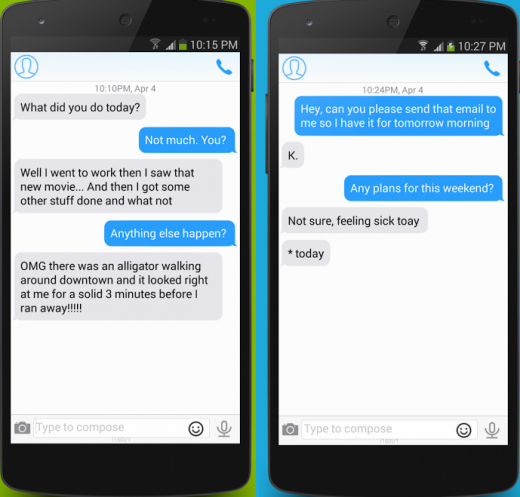
Rather than changing all the notifications on your phone, Mumble focuses exclusively on these two areas to provide you with different levels of feedback through vibrations, depending on the chat. The idea is that the more lines of text, the more vibrations you’ll feel, and there are options for ignoring one word messages or typo corrections.

While it worked as expected, there’s a bit of a set-up process to get through with Mumble. In fact, you’ll need to change the vibration settings for your SMS app, and any other chat apps you have installed (WhatsApp, Kik, Facebook Messenger, Google Hangouts, Viber, Line, Telegram, TextSecure, Text Me!, and WeChat are supported presently), which is a bit of a chore. Still, there are instructions included for changing the settings, and once you’ve done it, you won’t have to do it again.
MumbleBasic 520x497 11 Android apps to make notifications more interesting

As well as a free ‘Basic’ version of Mumble, there’s also premium version priced at $1.49.

In this version, there’s also the ability to set custom vibration notifications based on the content of the message. It’ll currently identify positive, negative, NSFW, business or emergency messages, so you can get an idea of what the message is before you even see your phone.

The paid for option also allows you to do things like set it up to ignore all your messages about business while you’re away on holiday, or to ignore all messages while you’re dozing, unless it’s an emergency.

If you’re a chat-a-holic looking for notifications that are a little bit smarter than the average app, then check out the free version of Mumble to ensure it works with your phone first.

➤ Mumble Basic | Mumble ($1.49)

Espier Notifications


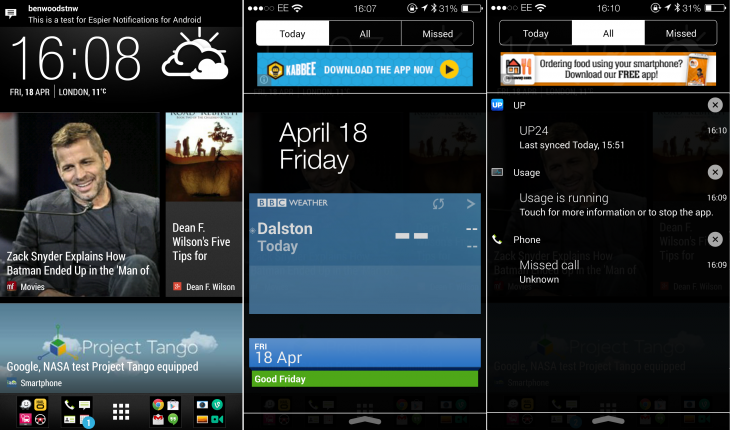
If what you have is an Android phone, but what you really want is iOS 7′s flat stylings, then try Espier’s collection of apps designed to make your ‘droid look more like an iPhone.

For the free Espier Notifications download, the app will swap out your standard Android notifications bar and replace it with something altogether more iOS flavored. There are also a number of other downloads (icons, lock screen etc.) to make the rest of your device feel more like an iPhone too.
Espier 730x430 11 Android apps to make notifications more interesting

The price you pay for this free goodness is ads placed at the top of your notification panel when you pull it down. Or you can cough up $5 for the Pro version, which will remove the ads and give you a few more options for customizing the size, color, font and layout of your icons.

For my part, I don’t think I’d hand over the cash for the Pro version, and Espier’s notification stylings work best if you go ahead and install the other Espier apps too. But if you do install the whole suite of free apps, you’ll end up with a fair few ads dotted around your system. In that situation, the licence could be worth shelling out for, but only if you really, really  love the look of iOS 7.

➤ Espier Notifications | Espier Pro Notifications ($5)

Pops Ringtones & Notifications


I’ve never been one to mess with my ringtone particularly, but Pops Ringtones & Notifications also provides an easy way to get video notifications every time you get a call, SMS or message via any of the other supported messaging apps like Facebook, Whatsapp, SMS, Gmail, Twitter, Yahoo Messenger, Google+, Instagram, Skype, Hangouts and more.

Setting it up is easy – just install the app, and select a Pop for each of your contacts, or set the same Pop to appear whenever anyone gets in touch. There are a whole range of categories with

Fix These 5 Email Marketing Missteps Right Now

Email_repair

The email marketing train is a constant and fast-moving one. It is hard to get off at the high speed and seemingly even harder to slow it down and take in the view. Many email marketers find it very hard to change less-than-successful practices or gain momentum on new techniques and strategies. However, there is hope! Email marketers share many ailments, but the remedies may not be as painful as one would expect.

The most important things are done at the last second:

You would never choose your brand name, where your office or stores should be located, or who should run your company at the last minute, but we make most of the crucial and impactful decisions at the last moment of our campaigns. Sometimes email marketers literally think about the subject line right before pressing send, as an almost necessary evil.

The subject line and your second subject line (aka preheader/preview text) are so important, especially since 65% of emails are opened on smartphones and/or tablets (according to Movable Ink). This is how consumers and busy professionals are reading (really skimming, at best) your emails and deciding if they will delete immediately or engage with your email whether on their mobile device or back on a laptop or desktop.

Quick fix: Create or update a campaign brief where you outline what the key business goals are, value to your subscribers, and options for the subject line and pre-header during this phase (ideally to test). Given the context of the strategic planning, your subject line will likely be stronger than at the end of a tactical to-do list.

Inertia as the mobile tide surges:

I was recently speaking to a smart group of 100 digital marketers, almost all who were involved with their email programs, if not outright managing them. Not a single hand went up (yes, I know that is not statistically pure) when I asked if anyone knew how many of their subscribers were reading their emails on a mobile device. After I was given CPR, I counseled them to make this a priority.

Quick fix: Knowledge is power. Lack of knowledge can be a career killer. You can't develop a mobile strategy if you don't even know how many subscribers are edging toward a true mobile audience. Ascertain this data so you can build the game plan. A simple tracking pixel can get it. Ask your email partner to assist if you are stuck on how to implement this.

Having a generalist creative team design and code your email:

Great email creative is often not great Web creative and vice-versa. The old mindset of no one wanting to design emails because you can't design email is long gone and a new generation of tech-savvy designers knows what separates a functional and fantastic email and it is a very different build than designing a website.

Quick fix: Not an easy one at some companies, but invest in experts who solely focus in this area. Whether you're a creative director, freelancer, or email agency, don't settle with generalists who very likely don't have a passion for email. A good guide is sharing emails that you love, why you love them, and discussing internally can help steer any email newbies with potential.

Operating in a vacuum:

You want respect, right? Then earn it. Start with ensuring your email program is not siloed within your company, much less your marketing organization. One way to do that is to share your high-level scoreboard/dashboard type business metrics with many people outside of your immediate team. Articulate what is working, how progress has been made, and anecdotes from your subscribers or internal stakeholders. This will allow you and your program to be more visible and everyone wins in that scenario.

Not understanding how email works:

It's kind of what you do for your job, right? You probably should have a deep and complete understanding of the basics of how email works.

Big Brother really is watching you (It's your IT manager)

In a fascinating survey, IT managers reveal some of the dubious activities they view being perpetrated by employees on work computers. These cause the IT managers extra stress and work (as well as, no doubt, the occasional fascination)


helpit.png


You know you're being followed, don't you?
You know that governments, phone companies, and all those sneaker-wearing pups at Google are interested in your every move.
Admit it, there's a part of you that quite likes it. It's better to have the impersonal and the inanimate care about you than no one at all.
However, there's another occasional snoop from whom your eye shouldn't often stray. It's the friendly, occasionally disheveled IT manager at your place of work.
They see things, you know.
There's a certain fascination, therefore, in reading the results of a survey of 300 IT Managers performed last month on behalf of TeamViewer.
This is a company that, stunningly, seems very focused on "the development and distribution of high-end solutions for online communication, collaboration and remote monitoring of IT systems."
In this survey, 92 percent of IT personnel admitted that they did, indeed, sneak peeks -- under the guise of doing their job, you understand -- at the details buried in workers' computers.
The other 8 percent work in monasteries. At least that's my assumption.
Perhaps you won't be surprised at the things these IT snoopers (42 percent of whom where female) see.
Eighty-two percent observe the obvious -- workers wafting onto social media sites of varying hues, rather than being what used to be called productive. Surely even work is social these days.
Fifty-seven percent insist that a huge problem is e-mail attachments of dubious provenance being opened. I have no evidence that any of these IT managers work for US Airways.
Fifty-two percent say that workers download games onto their office computers. And don't get them started about the unauthorized USB and other devices that get plugged into the precious office machines.
It seems there's also a lot of pirating going on in office time and on office equipment; 45 percent said they had seen evidence.
But perhaps the most enjoyable of all is observing just how many people in your office are applying for other jobs. Thirty-nine percent of IT managers said that, oh, yes, they'd seen job applications flying on work computers.
Perhaps these applicant are the people who are so bright that they never manage to leave their Sub-Associate Something Significant Manager positions.
Just like your government (in whichever country you are) is only spying to keep the system sound, IT managers are merely looking out for the welfare of the computers and the system as a whole.
Indeed, they report that viruses crawl all over office equipment like snakes on a plane. All this careless behavior by workers causes computers to slow and crash.
Mass pop-ups invade like ants on rancid ice-cream. Or crazy ants on Texas.
Thirty-three percent even declared that corporate e-mail grinds to a halt because of employees' carelessness.
All of these issues mean that 23 percent of these IT people say that they have to put in an extra 10 to 20 hours a week to sort out the mess.
Worse, 29 percent said that they had to walk 10 to 20 miles a month between desks and floors. No wonder they like Taco Bell so much.
Sixty percent of all these respondents described themselves as angry when computers are damaged by employees' careless behavior.
What was left unsaid in this study was whether these IT managers actively spied on workers' computers, or merely happened to notice the problems while they were forced to perform emergency repair work.
So I asked a couple of IT managers whether they had, well, secret methods of monitoring their company's computers whenever they felt like it.